Play Store Assets
Copy and paste these into your Google Play Console submission
Generated Graphics

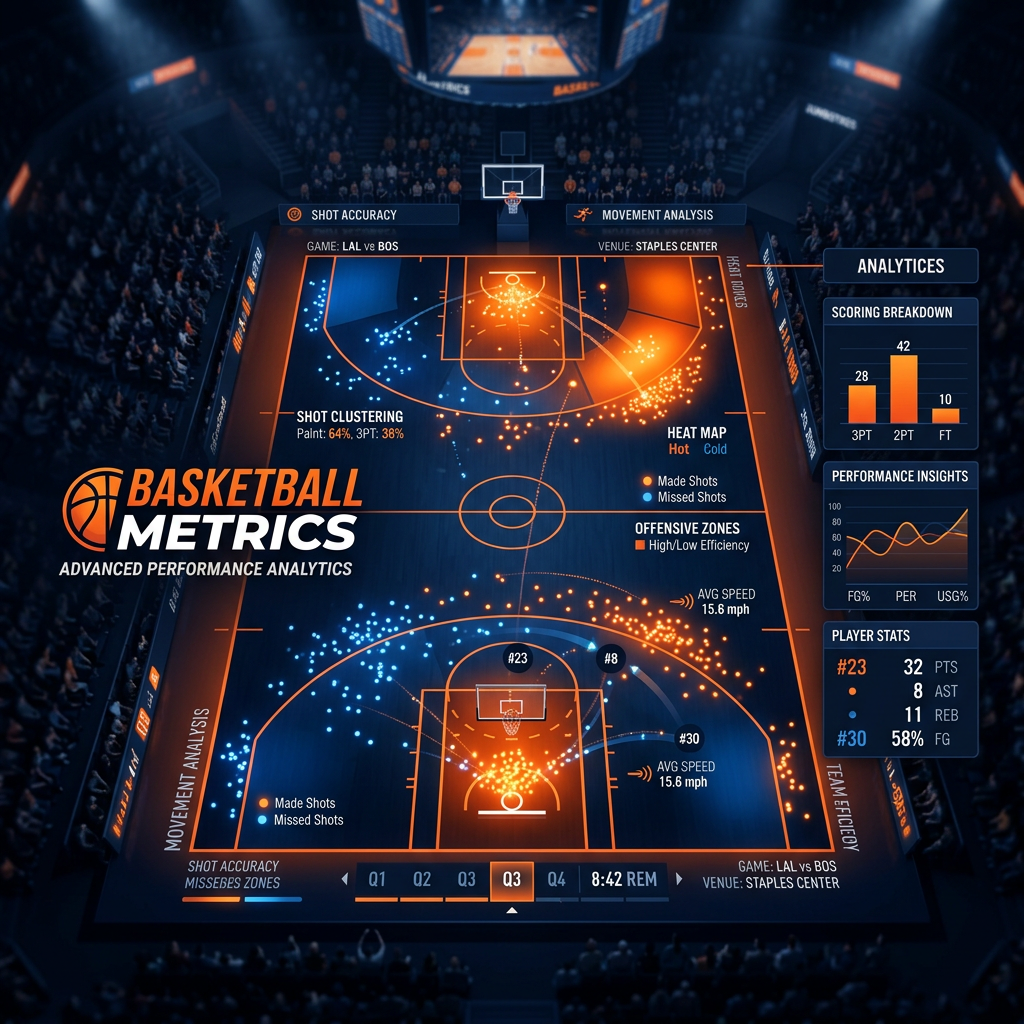
Store Listing Content
PWA Manifest (manifest.json)
Data Safety Responses
Data Collected:
Email address
Purpose: Account management, subscription verification
Encrypted in transit: Yes
Can be deleted: Yes
App activity (shots, sessions, player data)
Purpose: Core app functionality - tracking basketball statistics
Encrypted in transit: Yes
Can be deleted: Yes
App info and performance (crash logs)
Purpose: App analytics and bug fixes
Encrypted in transit: Yes
Can be deleted: No (anonymous data)
Privacy Policy URL
Google Play Console requires a public privacy policy URL. Use this exact link in the App content → Privacy Policy field:
Make sure the PrivacyPolicy page is reachable on the published app before submitting.
First Release Readiness Checklist
This will be a brand-new app on Google Play (not a version update). Use these exact values in the Play Console:
After first AAB upload (one-time):
- Play Console → Release → App integrity → copy the App signing key certificate SHA-256.
- Paste it into
public/.well-known/assetlinks.jsonreplacing the current upload-key fingerprint. - If your Play Console account is a personal account (created after Nov 2023), complete a 14-day closed test with 20 testers before production.
Next Steps: Generate APK
- Add the manifest.json file to your project (copy from above)
- Download and save the app icon as
public/icons/icon-512.png - Publish your Base44 app to get a public URL
- Go to PWABuilder.com
- Enter your published app URL and click "Start"
- Select Android platform → Generate Package
- Fill in package details (Package ID:
app.base44.basketball_metrics_v2.twa— must match the assetlinks.json package_name exactly) - Download the .aab file
- Upload to Google Play Console